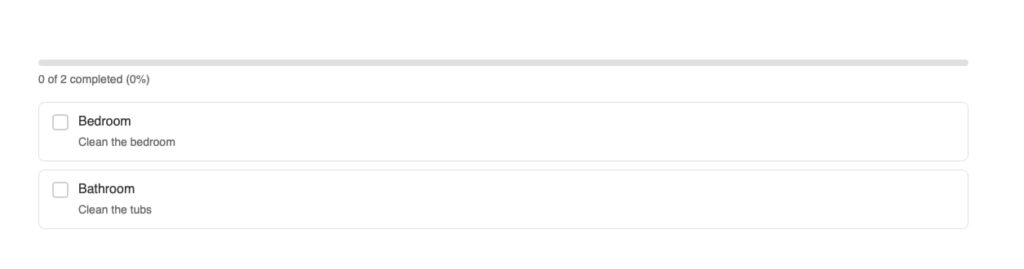
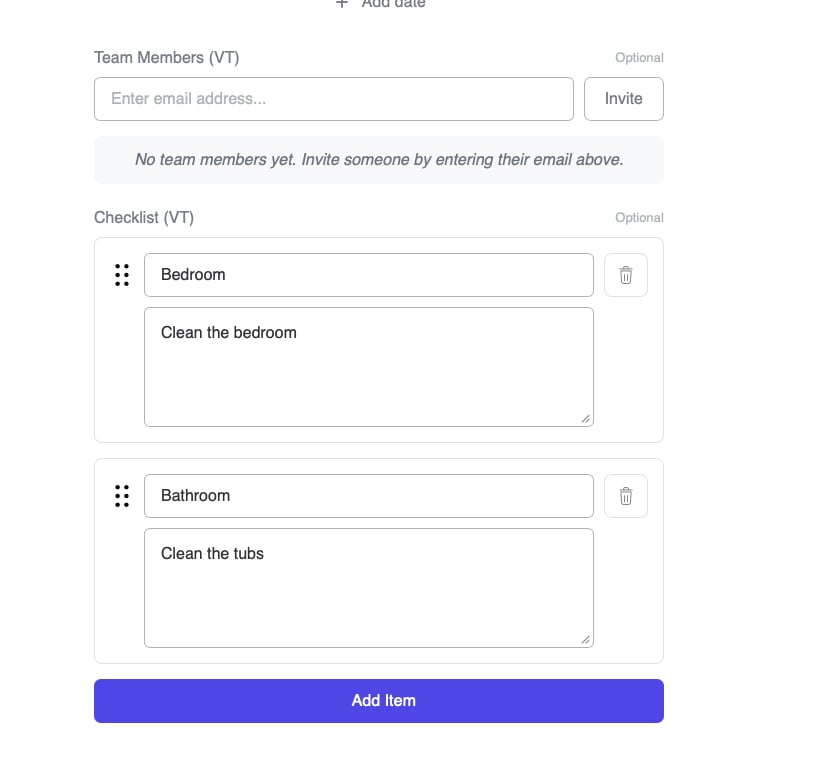
The Checklist Field is a custom post field that allows users to create interactive checklists with items that can be checked off. Perfect for task lists, to-do items, requirements tracking, and progress monitoring.
Overview
This field type adds a new “Checklist” option when configuring post fields in Voxel. Users can create multiple checklist items, each with an optional title and description. Items can be reordered via drag-and-drop and checked off by authorized users.
Key Features
Create unlimited checklist items with titles and descriptions
Navigate to Voxel Toolkit > Post Fields in your WordPress admin
Find Checklist Field in the list
Toggle the switch to enable
Click Save Changes
Step 2: Add Field to Post Type
Go to Voxel > Post Types
Select the post type to configure
Navigate to Fields tab
Click Add Field
Select Checklist (VT)
Configure field settings
Save the post type
Field Configuration
Setting
Description
Default
Label
Display name for the field
Checklist
Key
Unique identifier for the field
checklist
Description
Help text shown to users
Empty
Required
Whether at least one item is required
No
Toggle Permission
Who can check/uncheck items
Author only
Toggle Permission Options
Author only: Only the post author can toggle checkboxes
Logged-in users: Any logged-in user can toggle items
Everyone: All visitors (including guests) can toggle items
Checklist Display Widget
The Checklist Display Widget is an Elementor widget that renders checklist fields on the frontend with full interactive functionality and styling controls.
Widget Settings
Setting
Description
Default
Checklist Field
Select which checklist field to display
First available
Hide If Empty
Don’t show widget if no items exist
No
Styling Options
The widget includes comprehensive styling controls: