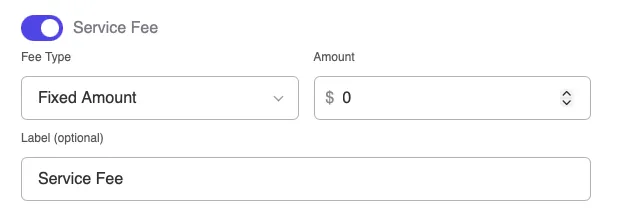
Service fees let you add an additional charge per ticket. This can help cover payment processing costs, platform fees, or generate extra revenue for your events.
What Are Service Fees?
A service fee is an extra charge added to each ticket. For example:
Ticket price: $25.00
Service fee: $2.50
Customer pays: $27.50
The fee appears as a separate line item so customers can see exactly what they’re paying.
Enabling Service Fees
Service fees must first be enabled site-wide before you can use them on your events.
Step 1: Enable in Plugin Settings
Go to Event Tickets → Settings in your WordPress admin
Find the Service Fees section
Toggle Enable Service Fees to on
Click Save
Step 2: Add Fee to Your Event
Once enabled site-wide, you can add fees to individual events:
Edit your event
Open the product/tickets field
Find the Service Fee section
Configure your fee (see options below)
Save your event
Fee Types
Fixed Amount
Charge the same fee regardless of ticket price:
Example: $2.50 per ticket
Best for: Consistent processing costs, simple pricing
Ticket
Price
Fee
Total
GA
$25.00
$2.50
$27.50
VIP
$75.00
$2.50
$77.50
Student
$15.00
$2.50
$17.50
Percentage
Charge a percentage of the ticket price:
Example: 5% per ticket
Best for: Scaling with ticket value, premium events
Ticket
Price
Fee (5%)
Total
GA
$25.00
$1.25
$26.25
VIP
$75.00
$3.75
$78.75
Student
$15.00
$0.75
$15.75
Configuring Your Fee
Fee Amount
Enter the fee value:
For fixed: Enter the dollar amount (e.g., 2.50)
For percentage: Enter the percentage (e.g., 5)
Fee Label
Customize what customers see:
Default: “Service Fee”
Examples:
“Booking Fee”
“Processing Fee”
“Platform Fee”
“Facility Fee”
Per Ticket vs. Per Order
Service fees are applied per ticket, not per order:
Order
Fee per Ticket
Total Fees
1 ticket
$2.50
$2.50
3 tickets
$2.50
$7.50
5 tickets
$2.50
$12.50
How Customers See Fees
In the Ticket Form
When customers select tickets, they see:
Order Summary
─────────────────────────
2x General Admission    $50.00
Service Fee (2x $2.50)   $5.00
─────────────────────────
Total                   $55.00
On the Receipt
After purchase, the receipt shows:
Individual ticket prices
Service fees as line item
Total charged
Transparency
Being clear about fees builds trust:
Fee appears before checkout
Customers know the total upfront
No surprise charges at payment
Where the Fee Goes
Service fees are credited to the event organizer (you):
Fee is part of the order total
Collected through your normal payment process
Shows in your revenue reports
When to Use Service Fees
Good Use Cases
Cover payment processing:
Credit card processors charge 2.9% + $0.30. A small service fee can offset this:
$2.00 fixed fee covers most transactions
3% percentage fee matches processor cost
Platform or venue fees:
If you pay fees to use a ticketing platform or venue:
Pass some or all cost to ticket buyers
Common in the event industry
Premium experience:
For events with extra services:
Fee covers things like reserved seating systems
Helps fund customer support
When to Skip Fees
Free events:
If tickets are free, adding fees may seem odd.
All-inclusive pricing:
Some prefer to build fees into ticket prices for cleaner numbers.
Competitive markets:
If similar events don’t charge fees, yours may seem more expensive.
Fee Strategies
Cover Processing Costs
Most payment processors charge around 2.9% + $0.30 per transaction.
For a $25 ticket:
Processing cost: ~$1.03
Service fee: $1.50 (covers cost with small margin)
Round Number Totals
Set fees so totals are clean numbers:
Ticket: $23.00
Fee: $2.00
Total: $25.00 ← Nice round number
Tiered by Ticket Type
While fees are set per-event, consider your ticket mix:
Lower-priced tickets: Fixed fee works better
Higher-priced tickets: Percentage fee works better
Mixed: Choose based on your most common ticket type
Displaying Fee Information
On Your Event Page
Consider adding text explaining fees:
“A small service fee is added to each ticket to cover booking and processing costs.”
In Your FAQ
Add a question about fees:
Why is there a service fee? The service fee helps cover payment processing and platform costs. It ensures we can continue providing a smooth ticket purchasing experience.
Troubleshooting
Service fee option not appearing
Go to Voxel Events → Settings
Make sure Enable Service Fees is on
Save settings
Refresh your event edit page
Fee not showing on ticket form
Make sure you’ve added a fee amount in the event settings
Check that the amount is greater than 0
Verify you selected a fee type (fixed or percentage)
Clear any caching plugins
Wrong fee amount showing
Double-check your fee configuration
Fixed = dollar amount (2.50 means $2.50)
Percentage = percent value (5 means 5%)
Make sure you selected the right fee type
Fee not appearing in order total
Refresh the page
Clear browser cache
Check for JavaScript errors in browser console
Contact support if issue persists
Legal Considerations
Service fees are common and legal, but consider:
Transparency
Always show fees before checkout. Hidden fees can: