
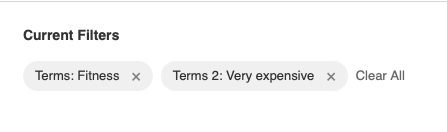
The Active Filters widget displays currently applied search filters as removable tags. Users can see what filters are active and easily remove them to refine their search results.
Parse URL parameters and display them as visual filter tags. Each tag shows what filter is applied and can be clicked to remove it. Includes a “Clear All” button to reset all filters at once. Perfect for search result pages with multiple filter options.
| Setting | Description | Default |
|---|---|---|
| Show Preview | Display placeholder filters in editor | No |
| Heading | Optional heading above filters | Empty |
| Layout | Horizontal or Vertical | Horizontal |
| Hide When No Filters | Hide widget when no filters active | Yes |
| Empty State Message | Text when no filters (if not hidden) | Empty |
| Setting | Description | Default |
|---|---|---|
| Hide Post Type Filter | Don’t show the “type” parameter | Yes |
| Hide Sort Filter | Don’t show the “sort” parameter | No |
| Exclude Parameters | Comma-separated list to hide | Empty |
| Remove Icon | Icon style for remove button | × (Times) |
| Setting | Description | Default |
|---|---|---|
| Show Clear All | Display clear all button | Yes |
| Clear All Text | Button text | “Clear All” |
| Clear All Position | Before or After filters | After |
| Setting | Description | Default |
|---|---|---|
| Show Filter Name | Display filter name with value | Yes |
| Keywords Label | Label for search keywords | “Search” |
| Sort Label | Label for sort filter | “Sort” |
| Range Separator | Text between range values | ” – “ |
The widget automatically formats values for better readability:
URL: ?price=0..300
Display: Price: 0 - 300URL: ?category=apartments,houses
Display: Category: Apartments, HousesURL: ?featured=1
Display: Featured: YesShow active price range, location, and amenity filters with one-click removal.
Display selected job type, location, and salary filters for easy refinement.
Show category, brand, and price filters on product listing pages.
Display location, category, and rating filters for business directories.